Wallet, explained.
From the first pass to the messages you send and the balances you update. Find the right feature, and understand how Apple Wallet and Google Wallet differ.
Start with what the customer needs to do.
The pass type determines which data and actions fit. A loyalty pass, gift card and ticket can share your brand while following different rules.
- Membership
- Identify the customer and show their tier, points or benefits.Apple Generic pass / Store card / Classic genericGoogle Loyalty card / Generic pass
- Stamp card
- Show progress towards a reward. Stamps are managed by your loyalty program.Apple Generic pass / Store cardGoogle Loyalty card / Generic pass
- Gift card
- Show remaining value and an optional expiry. The issuer's system keeps the balance ledger.Apple Store card / Classic generic / Generic passGoogle Gift card
- Offer or coupon
- A specific offer with validity dates and a redemption code.Apple Offer passGoogle Offer pass
- Festivals and events
- Bring together the ticket, time, venue and optional assigned seat.Apple Event ticketGoogle Event ticket
- Flight
- Show the passenger, route, boarding time, seat and gate from the travel operator’s system.Apple Boarding passGoogle Boarding pass
- Transit ticket
- A single journey or period ticket with validity and route information.Apple Classic generic / Boarding passGoogle Transit pass
- Access and other passes
- For example, an annual pass or visitor credential. A generic pass does not automatically provide key or identity features.Apple Generic pass / Classic genericGoogle Generic pass
We help you choose pass types, design and integrations that fit your customer journey.
One identity. Two different passes.
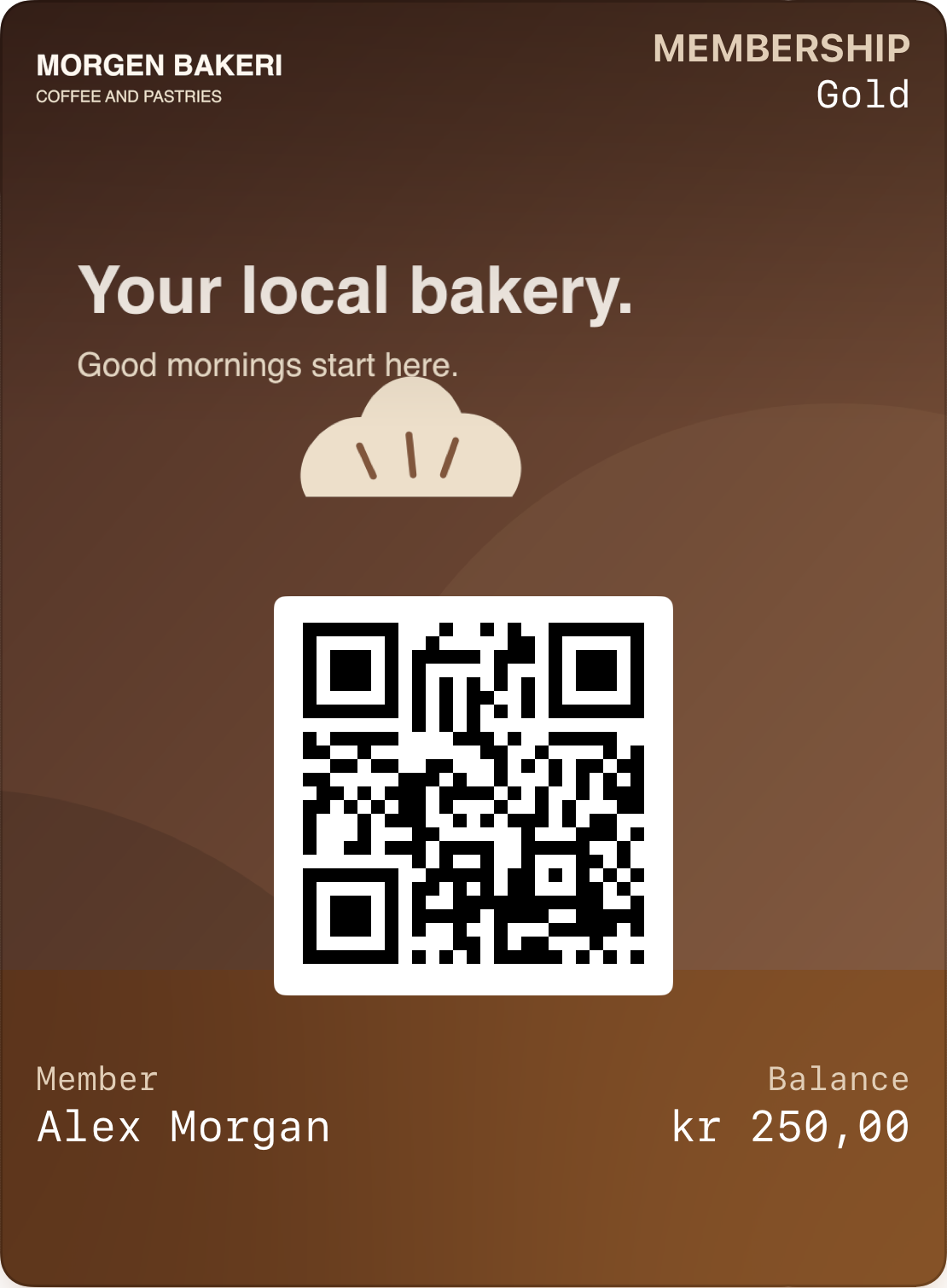
Start with your logo, colours and the most useful fields. Keep your brand consistent across both platforms and adapt the layout to each platform's template.
Apple Wallet
- Pass style and fields determine the layout.
- Images fit Apple's predefined image areas.
- Links and actions depend on iOS and pass style.
Google Wallet
- Logo and title follow the chosen pass type template.
- Android default templates show the barcode before the detail fields and heroImage at the bottom. Stamp artwork can use this image. Custom rows can change its placement.
- Rows and link modules can be configured within Google templates.
Let the pass open the next step.
Connect a pass to the member page, offers, top-ups, ordering or directions. Use a secure URL to a page you control, keeping authentication for personal information and balances.
Apple Wallet
Featured Actions appear as action tiles on supported iOS versions. Choose a clear action such as View Membership Benefits, Add to Balance, View Offers and Rewards or Go to Location. Choose the action preset and destination. Its icon and label follow Apple's preset. On earlier versions, web links can appear in pass details.
Go to Location opens a specific place in Apple Maps. Use the store’s Maps identifier rather than a free-text search link. A member’s recorded enrollment location can be the destination once its valid Maps identifier is configured.
Google Wallet
Link modules collect URLs with descriptive labels in pass details. An app or web link can also connect the pass to your service. Google’s template controls placement; Apple’s Featured Actions and icons do not transfer as the same layout.
Links in messages should relate to the pass, such as the menu, offer or member account. Use a dedicated claim link for gift cards; sharing a link must not grant access to another customer’s account.
Send a message from Loylo.
Start with who the message is for and what they need to know. A message, a pass update and an alert are separate parts of the flow.
- Choose a member, pass or campaign audience.
- Write the offer and choose language and send time.
- Review recipients and the message before sending.
From confirmation to the delivery queue
Confirmation places delivery in the queue. Loylo checks the pass, active program and notification preferences when processing the job, including scheduled gift-card messages. An expired or deactivated pass should not receive the scheduled message.
Queue status shows progress from a pending job to processed delivery or failure. A processed job does not confirm that the customer saw the notification on their phone.
Choose timing and frequency
Send an offer now, or select a date and time. For recurring campaigns, choose the frequency and check the time zone. Review the audience, selected pass and language before confirmation; a member message can target one specific membership or gift card.
Connect the action to an event
Use enrollment, referrals, reward progress, birthdays, inactivity or a time window to drive automation. Choose the audience and action, and control when the rule is active. A birthday rule can award extra stamps or points in the selected program.
A GEO rule sets location relevance on the pass during the active period. Wallet evaluates proximity on the customer’s phone. This differs from a scheduled message and does not require tracking the customer’s location in Loylo.
Apple alerts through a change to the pass. Google uses Wallet messages. The customer's phone and notification settings determine whether and how an alert appears.
Loylo manages audiences and scheduling. Apple alerts through relevant pass updates; Google supports messages with notification requests.
The same work in Loylo. Different paths to Wallet.
How a pass update or message travels from the system to the customer’s Wallet.
Apple Wallet
 Morgen bakerinowOur new lunch menu is here. Drop by and find your new favourite.
A pass field changes
APNs signals an update
Wallet fetches the signed pass
An eligible change message may appear
Apple describes loyalty alerts for offers and seasonal campaigns. In the pass-update flow, APNs is a silent signal; Wallet fetches the signed pass, and changeMessage connects a visible alert to relevant changed pass content. Device permissions and Wallet control presentation.
Google Wallet
New message on your pass
Open Wallet to read the message from Morgen Bakeri.
The message is added to pass details
Wallet notifies the customer
The customer opens the pass and chooses View Message
The unread message appears in pass details
Google supports adding a message to pass details and requesting a notification. Google controls the Lock Screen notification text; campaign copy is read inside Wallet. Selected fields can also trigger update alerts. Customers must enable Wallet notifications, and quotas apply.
Google limits message notifications and supported field-update notifications to three per pass within 24 hours. Plan frequency accordingly. Wallet and device notification settings control whether and how alerts appear.
The pass when your customer is nearby.
Geo alerts connect the pass to your store’s location. When a customer is nearby, Wallet can help them find their pass — with a pass suggestion on Apple and a nearby notification on Google.
Apple Wallet
The bakery is just around the corner.
A pass suggestion on the Lock Screen
Wallet can surface a saved pass when the customer is near your store. They tap to open it. Location relevance is a passive suggestion, and does not send the same push notification as a pass update.
The customer must allow location access and pass suggestions on the Lock Screen. iOS decides when the pass is relevant and how it appears.
Google Wallet
Morgen Bakeri nearby
You have a membership card you can use here.
A notification about a nearby pass
Google Wallet can remind customers about a saved pass at your store’s location. Tapping opens the pass. Google determines distance, dwell time and notification text; you do not write a separate Google GEO message.
Customers must enable Wallet notifications and grant Google Wallet precise, always-on location access. They can swipe the notification away, and it disappears when they leave the location.
Set it up in Loylo
- Check that your store’s location is positioned correctly on the map.
- Go to Push → Geo alerts and create a rule. Select the passes and locations it should apply to.
- Write a short relevance message, optionally choose days and times, and activate the rule. Apple uses your text; Google chooses its own notification text. The customer must have saved the pass in Wallet and enabled the necessary permissions.
Wallet evaluates proximity on the customer’s phone. This is not a guaranteed message when someone crosses a set radius, and Loylo does not need to track the customer’s position to configure location relevance on their pass.
Adjust balances and rewards on the right pass.
Open the member and choose the membership or gift card to change. If the member has multiple passes, select one before adjusting it.
- Select the membership or gift card under the member.
- Enter a positive or negative amount and review the new balance. A reason is optional.
- For memberships, you can also adjust stamps, redeem or remove an available reward, and reset the pass.
- Save. The change is recorded against the selected pass and updates Wallet. Gift card expiry can be changed in the same pass adjustment.
For example, a gift card with a balance of 500 kr becomes 550 kr after a +50 kr adjustment, or 450 kr after −50 kr. The change applies only to the selected pass, not to other gift cards or the membership balance.
The transaction ledger holds the balance. Wallet displays the updated value.
What do the platforms support?
On small screens, scroll the table sideways to compare.
| Feature | Apple Wallet | Google Wallet |
|---|---|---|
| Pass types | Store card, coupon, generic pass, boarding pass and event ticket. Memberships and gift cards use these pass styles. | Dedicated types for loyalty cards, gift cards, offers, event tickets, boarding passes, transit passes and generic passes. |
| Design | Logo, images, colours and text fields within an Apple pass style. The system controls layout and field presentation. | Logo, hero image, colours and fields within Google templates. Some rows are configurable; this is not a free-form web page. |
| Links and actions | Links and app actions depend on pass style and iOS version. Configuration alone does not guarantee a particular button appears. | Link modules and an app or website link on the front of the pass. Placement and appearance follow Google's model. |
| Balance and content | Wallet fetches an updated, signed pass from the issuer's web service after an APNs signal. An update does not necessarily show an alert. | The issuer updates the pass object through the API. Points and other fields can change without sending a notification. |
| Visible notifications | Change messages relate to updated pass fields. Apple describes relevant loyalty alerts, including offers and seasonal campaigns. Wallet controls presentation. | Messages with notifications and alerts for supported field updates. Notifications must be enabled and quotas apply. |
| Location | Relevance data can surface a pass on the Lock Screen when needed. This is not a freely programmable geofence campaign. | Nearby notifications for registered merchant locations. Google controls distance, timing and notification text; customer permissions are required. |
Terminal enrollment needs the right setup.
Apple OneTap combines a loyalty pass and Apple Pay in one tap. TwoTap reads the loyalty pass first, then payment. Apple VAS (Value Added Services) requires a compatible pass and certified terminal. Apple also describes loyalty invitations after an Apple Pay transaction. This requires supported passes, a VAS-certified terminal and an integrated enrollment flow with the provider.
Tap to Pay on iPhone can support loyalty pass reading and enrollment invitations through a compatible payment app and payment service provider. Ordinary contactless payment support does not confirm that your app or terminal has these loyalty features enabled.
Google Smart Tap conveys data from saved Wallet passes to a Smart Tap-certified NFC terminal. It is a separate protocol from Apple VAS. Reading an existing pass and enrolling a new customer are different flows; Google describes enrollment reminders after Google Pay and enrollment through the issuer's website. The feature requires verification and activation with Google.
We help connect enrollment, identification and balance updates to your customer journey. Setup is tailored to the terminal model, payment provider, certification, customer database and purchase data available from your POS.
Connect passes to your POS and customer database.
We help you choose pass types and connect existing customers to the right program. Setup is tailored to your POS and existing data.
Identification, earning and gift card redemption need an agreed data connection. The system records balances and purchase events; Wallet displays the updated pass content.
Apple Pay and Google Pay handle payment. Reading a membership or gift card uses its own terminal protocol and requires support in the terminal and POS.
Tell us which POS and customer database you use. We will establish the pass type, data connection and support on both platforms before agreeing on the solution.